Local media libraryNatural language search

Describe it. Find the shot.
Right on your drives.

ClipKnife is a local media manager with natural language search for Windows. Organize images, videos and audio, and find media and shots by describing them.

7-day free trialLicense priceUSD 14.90One-time payment

Trials activate automatically, with no activation code to enterPricing

Sample scene: sunset over the sea, with waves breaking on coastal rocks

Sample sceneA coastal sunset, with waves breaking on the rocks

Try finding a shot in the sample library.

Open demo
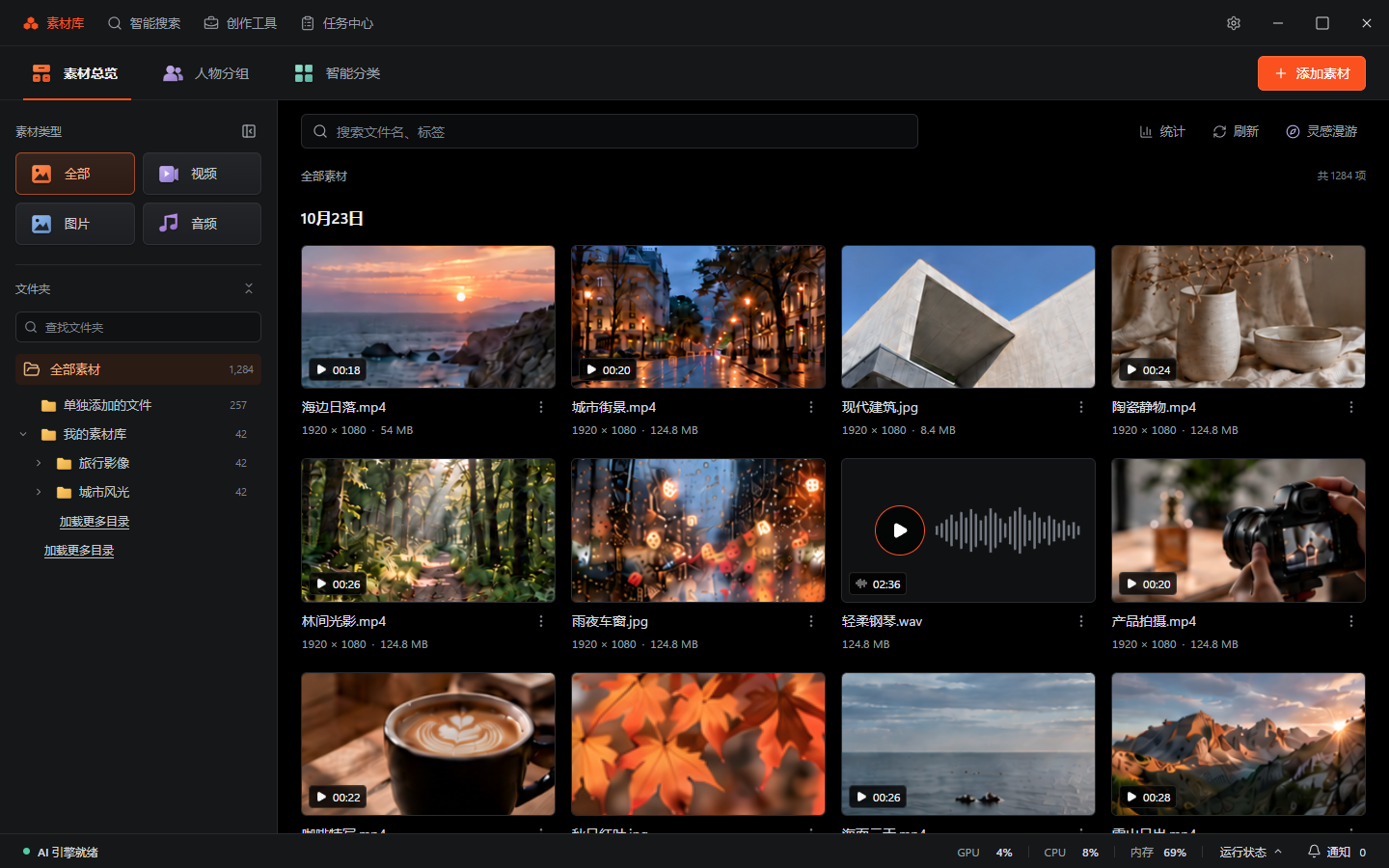
ClipKnife media library with a folder sidebar, media-type filters and an image and video grid
Browse media · Smart search · Preview shots

The sample library is ready. Click to explore.

Open this site on a computer to try ClipKnife.

Product preview · Sample mediaSearch, preview and group media in the demo

Media management, built for creators

Let AI understand your visuals, so you can find them without remembering folders or filenames.

Local processing and privacy

Library creation, indexing, shot detection and search run on your computer. Original media is not uploaded to ClipKnife’s public services. Optional LAN sharing and external models transfer data as needed; see the connectivity and privacy FAQ below.

Search in your own words

Search for “coastal sunset”, “product close-up” or “a person smiling” across images and video clips. You can also search with an image.

Automatic face grouping

Enable person indexing to analyze and group faces in images and video shots locally. Name, merge and organize groups by hand when needed.

Automatic library updates

Adding a media source starts a full scan. New, changed and removed files then enter the background queue automatically.


One complete workflow

From adding media sources to searching in your own words, ClipKnife makes local indexing a few simple steps.

See how it works
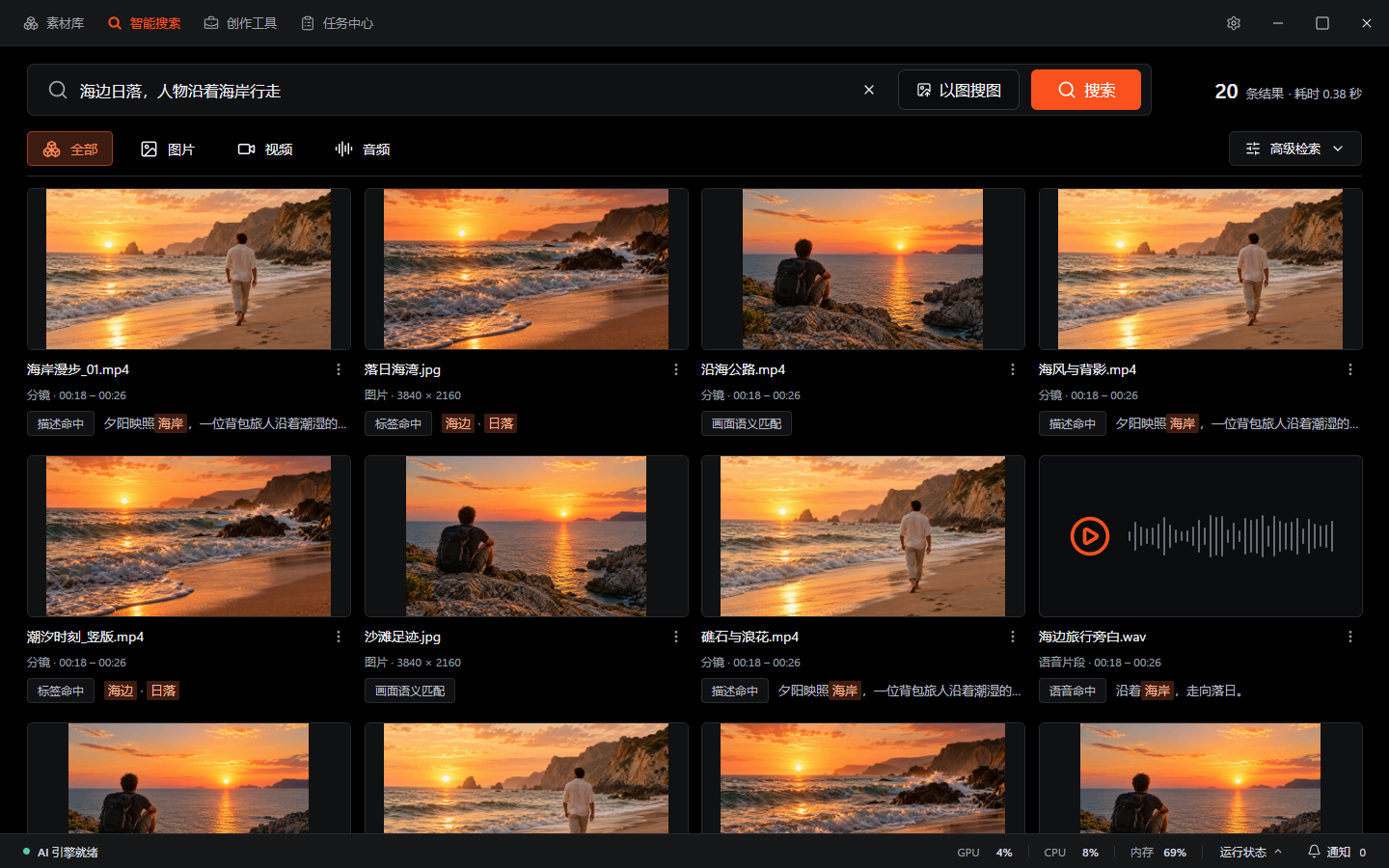
Smart search showing a coastal sunset query, type filters, match explanations and mixed image and video results
Describe the shot you need

Filter by image, video or audio, see why a result matched, then open the media.

Full-size image
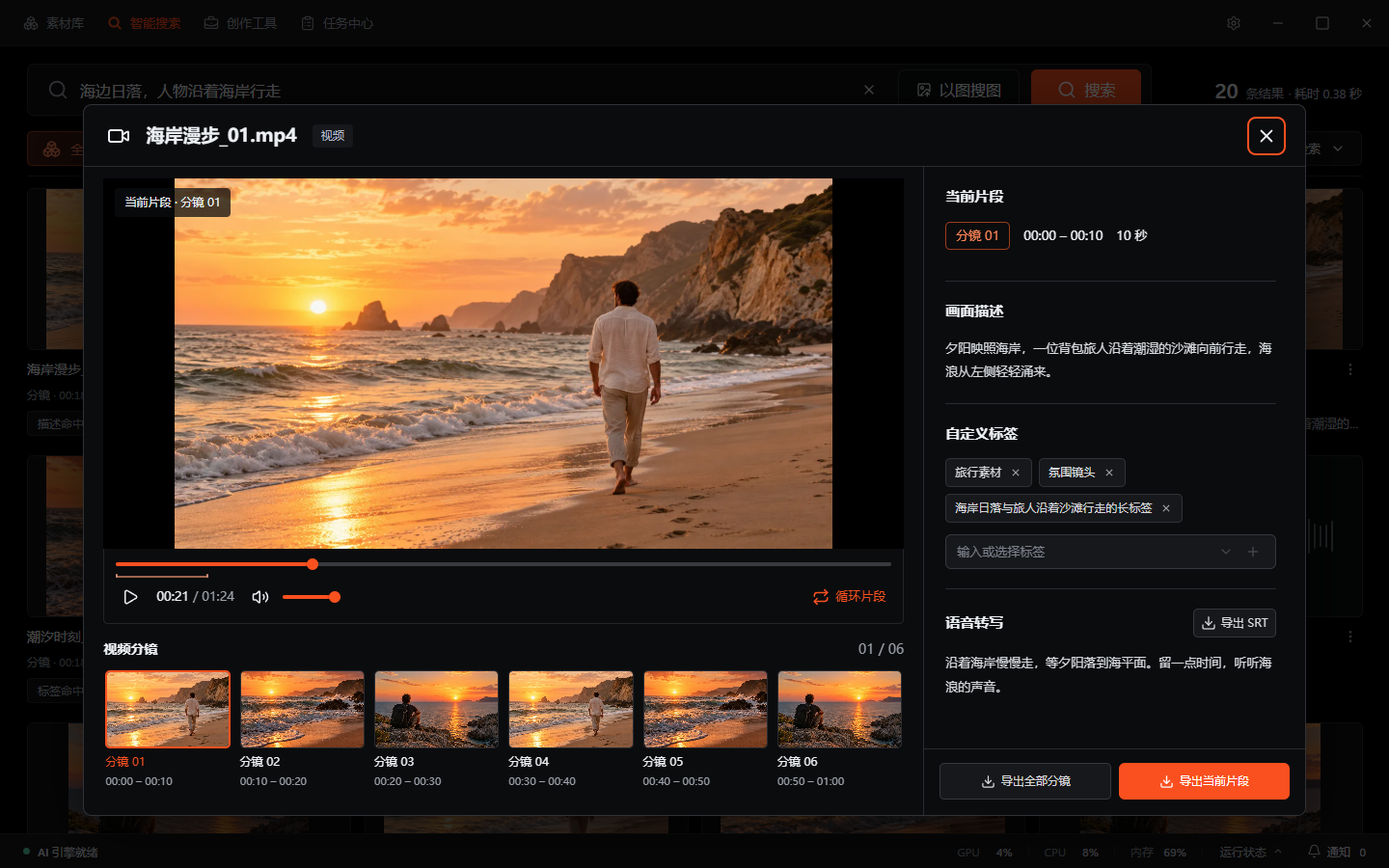
Video shot details with playback, thumbnails, time ranges, visual descriptions and export controls
Go from a full video to one shot

Preview shots, check time ranges and available descriptions, then use the clip that fits.

Full-size image

Screenshots show the current ClipKnife interface in Chinese. Media, search results and runtime states are examples.

Multiple media sources

Add folders, whole drives or external disks. System directories and development caches are excluded automatically.

Direct image indexing

Index common bitmap formats and camera RAW files such as CR2, CR3, NEF, ARW and DNG, then find them with a visual description.

Shot detection and frame extraction

Local AI detects shots and ffmpeg extracts representative frames, making video content searchable by meaning.

Background task queue

Scanning, shot detection, frame extraction and indexing run in a queue. One failed task does not block the whole library.

One search for your media

Find images and video clips in one search, with filters for each media type.

Open originals and diagnose issues

Open the original file or its folder, or jump to the matching time in a video. Export a diagnostic package if something goes wrong.

Go further with ClipKnife

Find the scene, hear the line.
Use the exact clip.

Find images and shots by describing them, locate spoken words in audio and video, group media by person, then send selected shots to your editor.

Feature previewIllustration based on the product interface

This illustration matches keywords against two fixed samples; it does not run AI search. Try “person” or “waves”. Open the demo for more media.

Selected shot 00:18 — 00:26

Along the coast, toward the sunset.
  1. Search by scene

    No need to tag first.
    Search images and video shots directly.

  2. Locate video shots

    Find a shot
    with its start and end times.

  3. Search spoken words

    Enable transcription
    to find clips by what is said.

  4. Group by person

    Group images and shots by person,
    with manual corrections.

  5. Send shots to your editor

    Bring the source and selected range
    into Jianying or Premiere Pro.

Scroll horizontally to compare all five features. Product names stay on the left.

How three apps support five search and creative workflows
ProductVisual searchShot locationSpeech searchPerson groupingEditor handoff
ClipKnife ClipKnife No prior tagging Start and end times Find spoken content Person groups, with corrections Jianying / Premiere Pro
Eagle Uses existing text Not documentedNot documentedNot documented Export selections via plugin
Billfish Availability not specified Not documentedNot documentedNot documentedNot documented

Not documented: the cited official sources do not describe the full workflow. This does not mean it is unsupported.

Indexing is required. Enable transcription and person indexing as needed. Editor integration requires a compatible setup.

Source review · ClipKnife entry updated 2026.11.09

ClipKnife v2.8.2 / Eagle 4.0.0 Build23 with the listed plugins / Billfish public documentation. See requirements

Creative tools,
when you need them.

Voice generation, image upscaling and video enhancement in one place. Install what you need and process locally.

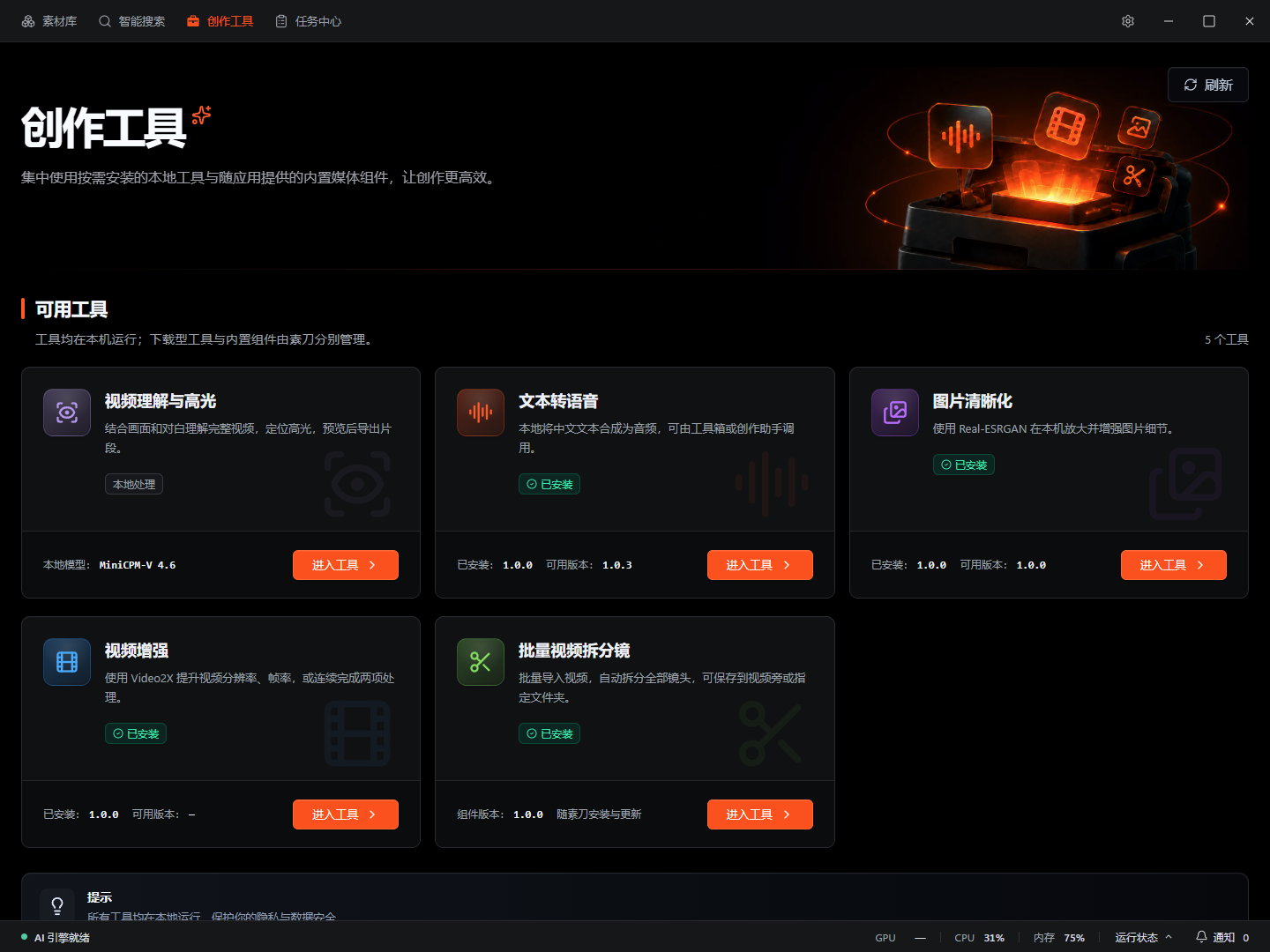
Creative tools: video understanding and highlights, text to speech, image upscaling, video enhancement and batch shot detection

Creative tools overview. Installation and runtime states are examples.

Full-size image
Text to speech
Choose a locally available voice and turn up to 50,000 characters of text into WAV audio.
Image upscaling
Upscale images locally with Real-ESRGAN, using photo or anime models.
Video enhancement
Use Video2X to increase resolution or frame rate. Results are saved as new files.

Find your media in four steps

No complicated import process. Start by adding a folder.

  1. 1

    Set up locally

    On first launch, ClipKnife unpacks and loads the local AI services and checks component health.

  2. 2

    Add media sources

    Choose a folder, drive or external disk. ClipKnife checks paths, removes duplicate sources and configures exclusions.

  3. 3

    Index in the background

    Images are indexed directly; videos are split into shots with representative frames. All tasks run in the background queue.

  4. 4

    Search in your own words

    Enter a description to find images and video clips together. Open the original file at the matching time.

Made for your workflow

Every creator with a growing media collection deserves a more intuitive way to find things.

Video editors

Find usable clips in past footage without browsing every folder.

Vloggers and creators

Organize years of footage and find the scene you want with a few words.

Designers and photographers

Describe reference images and sample shots to find them, without strict naming conventions.

Content teams

With a shared media drive, team members can find and reuse past assets using natural language.

Pricing

USD 14.90

7-day free trial

One-time purchase

Download and activate automatically

Each device can automatically claim one 7-day trial. No activation code is needed.

Download and try for free Buy a perpetual license

Initial activation requires internet access.

FAQ

Quick answers about pricing, privacy, formats and getting started.

How much does ClipKnife cost? Do I need an activation code now?

ClipKnife costs USD 14.90 as a one-time purchase. Each device can claim one free 7-day trial. The app activates automatically, so you do not need to obtain or enter an activation code. Initial activation and license verification still require internet access.

Does ClipKnife need an internet connection?

Library creation, indexing, search, shot detection and frame extraction run locally. Initial activation, license verification, component downloads and update checks require internet access. Once the required components are installed and your license remains valid, core local processing does not rely on cloud inference. Optional LAN sharing uses your local network; the creative assistant and external vision models connect to the model services you configure.

Which image and video formats are supported?

Images include JPG, JPEG, PNG, WebP and camera RAW formats such as CR2, CR3, NEF, ARW and DNG. Videos include MP4, MOV, MKV, AVI and WebM. More formats are planned for future releases.

How does video search work?

ClipKnife uses TransNetV2 to detect shots, then ffmpeg to extract representative frames for the local semantic index. Search results show those frames; click one to open the original video at the matching time.

Can I add an entire drive or an external disk?

Yes. Add folders, whole drives or external disks as media sources. Drive-level scans use default exclusion rules to avoid system directories.

How is my media kept private?

Local indexes and caches stay on your computer. Original media is not uploaded to ClipKnife’s public services. LAN sharing is off by default and intended only for trusted local networks; it sends search terms, query images you select, previews and requested originals over unencrypted HTTP. External vision APIs receive selected images or sampled video frames, while creative models receive relevant conversations and descriptions. These optional features are not fully offline.

Ready to rediscover your inspiration?

Download ClipKnife and search your images and videos in your own words.

7-day free trialLicense priceUSD 14.90One-time payment

Trials activate online automatically. Purchases provide an activation code.

Download 2.8.2
Windows 10 22H2 / Windows 11 Memory: 16 GB or more

Get in touch or join the community on WeChat